Coach PDF Workout Plan App: How to Track It Without Retyping
Got a coach PDF workout plan? See what an app needs to handle it well, and how Repport turns the file into a loggable session in seconds.
Read moreYour coach's PDF is not a training tool. Learn how to convert any workout plan PDF into a structured digital format you can log, track, and follow mid-session.
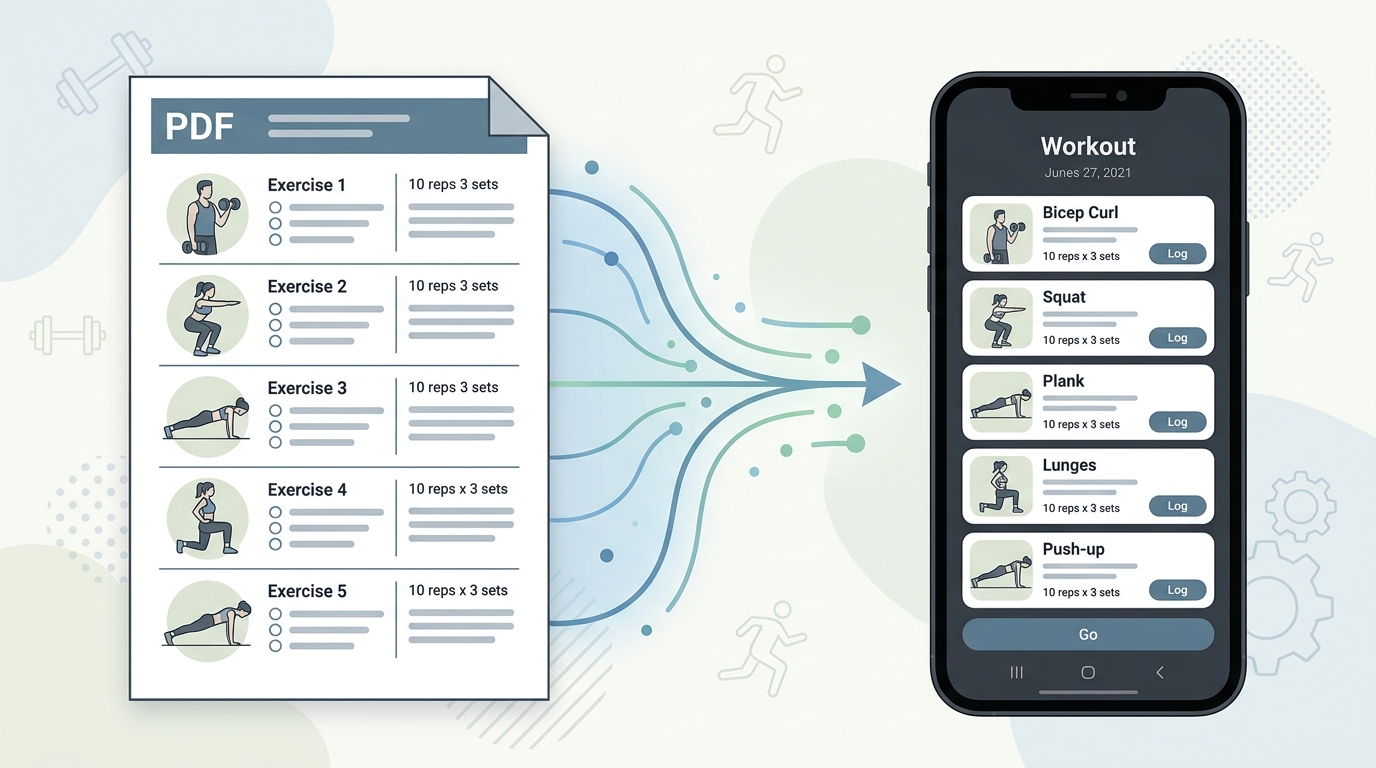
Most workout plans are delivered as PDFs. Coaches write programs in Google Docs, export them, and send the file. Online programs sell as PDF downloads. Gym plans get printed, scanned, and emailed back. The format is convenient for the person creating the plan — it preserves layout, looks clean on any device, and is easy to share.
The problem is that a PDF is a reading format, not a training format. It was not designed for the gym floor. When you are between a squat set and a Romanian deadlift with 90 seconds on the clock, the PDF stops working. You are pinch-zooming, losing your place, and trying to remember whether the notes in that column said 75% or 7.5 RPE. The document that made perfect sense at your desk becomes friction mid-session.
Converting your workout plan PDF to a usable format means extracting the structured information — exercises, sessions, sets, reps, load prescriptions, and any notation your coach uses — and moving it somewhere that supports active training: logging, history, timers, and progression tracking.
A PDF encodes a workout plan as a static visual layout. The exercises, sets, and reps are rendered as positioned text or, in scanned documents, as pixels. There is no underlying data structure that a training app can read directly. The document knows how to display information but not how to organise it for interaction.
This creates a specific failure mode at the gym: the plan is visible but not usable. You can see that today calls for four sets of bench press at 80%, but the PDF cannot track which sets you have completed, what weight you actually used, or how that compares to last week. Every session starts from the same static document, with no memory of previous performances.
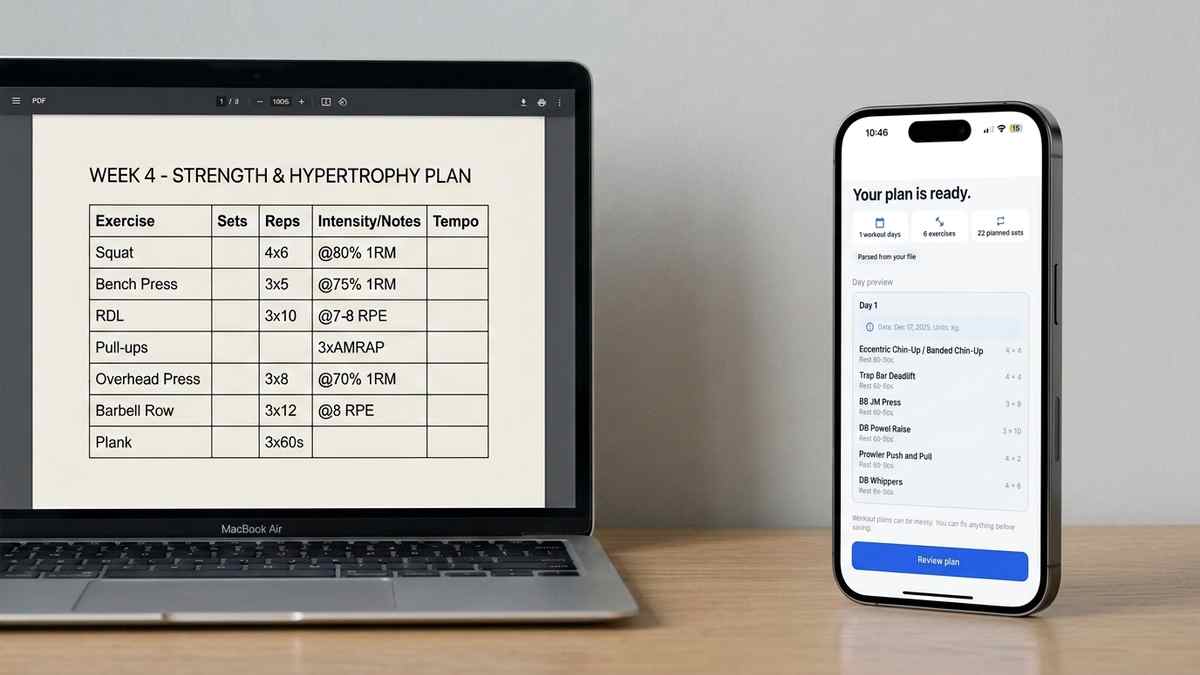
The notation formats coaches use also vary significantly. One coach writes “4×6 @ 80%”. Another writes “4 sets, 6 reps, 80% 1RM”. A third uses RPE: “4×6 @8”. These are equivalent prescriptions expressed in incompatible text formats. A PDF renders them all identically, as text, with no machine-readable structure.
Manual re-entry means opening your training app and typing each exercise, its sets, reps, and load prescription individually. The output is accurate because you control every field, but the process takes 20–40 minutes for a typical training block and introduces transcription errors. Long programs with supersets, deload weeks, and variable rep ranges are especially error-prone to type manually.
Spreadsheet conversion, copying exercises from the PDF into Excel or Google Sheets, gives you more structure than the original document. You can sort, filter, and create basic tracking columns. The limitation is that a spreadsheet is still not a training tool. It does not log completed sets, surface your previous weights, or run rest timers. You end up with a better-organised reading format, not an interactive training session.
PDF-to-text tools extract the raw text layer from a PDF and discard the layout. The output is a plain text file with all the content but none of the structure. Exercises, headings, notes, and table contents are flattened into a sequence of lines. Some cleanup is still required before the text can be imported into a training app, and scanned PDFs produce no usable output at all since there is no text layer to extract.
AI-powered import handles the full extraction. Repport reads the PDF, identifies the session structure — days, exercises, set and rep prescriptions, intensity notation — and converts it into a loggable workout automatically. The result is not a text dump but a structured training session with each exercise as an interactive element. Upload takes seconds; the converted session is ready to log immediately.
Most PDFs import cleanly without any preparation. A few structural patterns consistently produce better results.
Text-based PDFs, documents created in Word, Pages, or a dedicated coaching application, parse more accurately than scanned documents because the text layer is selectable and unambiguous. If you have a choice between a text PDF and a scanned version, use the text-based file.
Coach PDFs that use table layouts — one column for exercise names, separate columns for sets, reps, and load — import with higher accuracy than free-form text descriptions. The table structure signals to the parser exactly how to interpret each value. If your coach’s PDF uses a consistent table format, import it directly without modification.
PDFs that mix training data with non-training content — program overviews, physiological explanations, habit tracking pages — import the training sections cleanly and ignore the rest. You can select which sections to keep after the import preview.
Handwritten plans scanned to PDF are supported through the photo parsing path. The accuracy depends on legibility. Clear, consistent handwriting with explicit exercise names and numeric values imports well. Highly abbreviated shorthand that only you understand is better entered manually.
Once your PDF is converted, the exercises exist as structured data inside Repport rather than as positioned text in a static document. Each session shows the prescribed sets and reps alongside a log field for your actual weight and reps performed. Previous sessions for the same exercise are accessible in one tap, so you can see what you lifted last week without leaving the current session.
Rest timers run inside the session view. When you complete a set, the timer starts automatically based on your session settings. No separate timer app, no context switching. The PDF’s rest prescriptions, if included, appear as the timer default.
Progression tracking works automatically across sessions. After a few weeks of logging, Repport shows your volume trend, PR history, and set-by-set performance for any exercise in the program. This is information that exists nowhere in the original PDF — it requires the conversion from static document to live training data.
When your coach sends a new program block as another PDF, uploading it adds the new sessions without affecting your existing training history. The log from the previous block stays intact, linked to the exercises from that program.
If your coach sends programs as spreadsheets rather than PDFs, the Excel and CSV import workflow is more direct — no conversion step is needed for structured tabular data. After a training block, you can export your session history to CSV or XLSX for analysis or to send to your coach as a progress log.
Upload your PDF to Repport and get a tappable, loggable workout in seconds. Available now on the App Store.
PDFs are designed for reading, not for training. The moment you're between sets with 60 seconds on the clock, scrolling a static document stops working.
Converting a PDF workout plan means extracting its structured data — exercises, sets, reps, load — and moving it into a format that is interactive and trackable.
Yes. If your PDF is a scanned image rather than a text-based document, Repport uses its photo parsing path to extract exercises from the visual layout. Accuracy is highest when the scan is clear and the text is legible.
Most coaching PDFs, even idiosyncratic ones, use recognisable patterns: exercise names followed by sets and reps. Repport's parser is tolerant of notation variations and lets you review and edit the result before your session starts.
Only when your coach sends a new program. Within a training block, Repport works from the imported structure. When a new PDF arrives, upload it fresh — previous session history is preserved regardless.
Yes. After import you can select which sessions or days to include. If your coach sends a full 12-week program as one PDF, you can import only the current week and add future weeks as you reach them.
Keep reading
Got a coach PDF workout plan? See what an app needs to handle it well, and how Repport turns the file into a loggable session in seconds.
Read more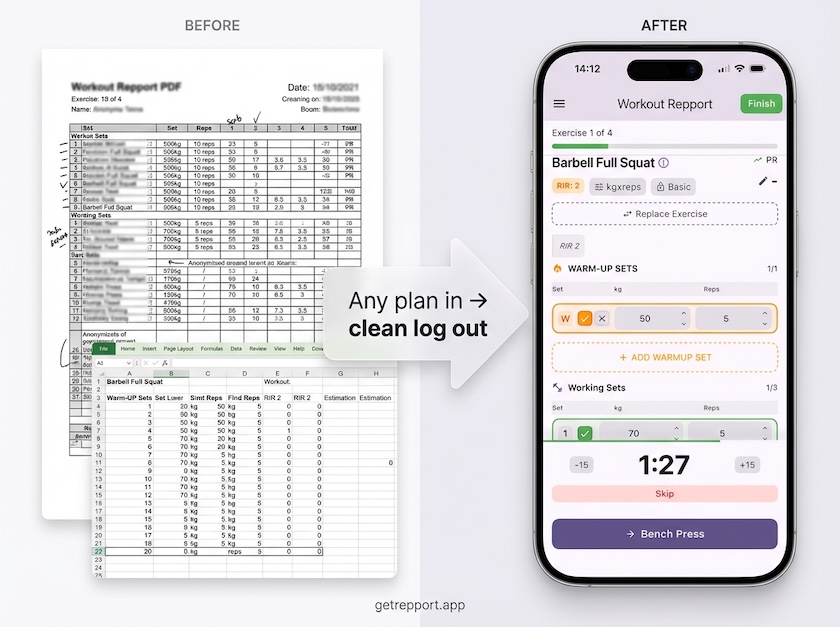
Stop training from a messy spreadsheet. Import your Excel or Google Sheets workout plan into Repport and log your sets with a mobile-first interface.
Read more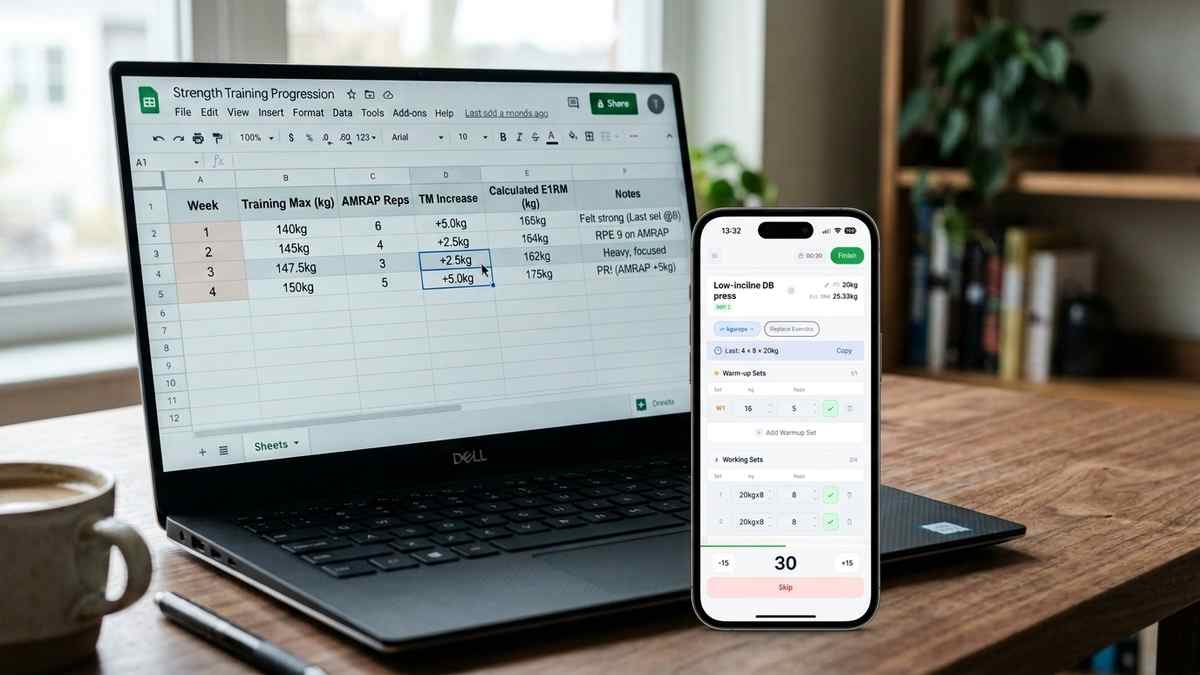
How nSuns 5/3/1 LP differs from standard 5/3/1, its T1/T2 structure, weekly training max progression, and how to track a cycle in an app.
Read moreUpload your plan and get a tappable workout in minutes. Join the future of coaching execution.