Coach PDF Workout Plan App: How to Track It Without Retyping
Got a coach PDF workout plan? See what an app needs to handle it well, and how Repport turns the file into a loggable session in seconds.
Read moreStop training from a messy spreadsheet. Import your Excel or Google Sheets workout plan into Repport and log your sets with a mobile-first interface.
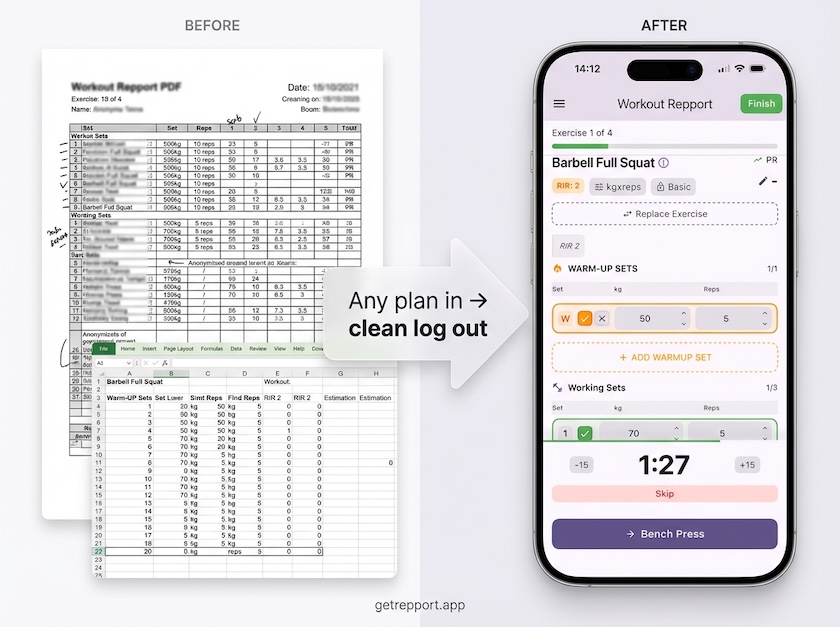
If your coach sends training blocks as a spreadsheet, you already know the problem: the plan lives on your laptop, but the workout happens at the gym. You end up scrolling through cells on a small screen, re-reading the same row, and manually counting sets while trying to stay focused between lifts.
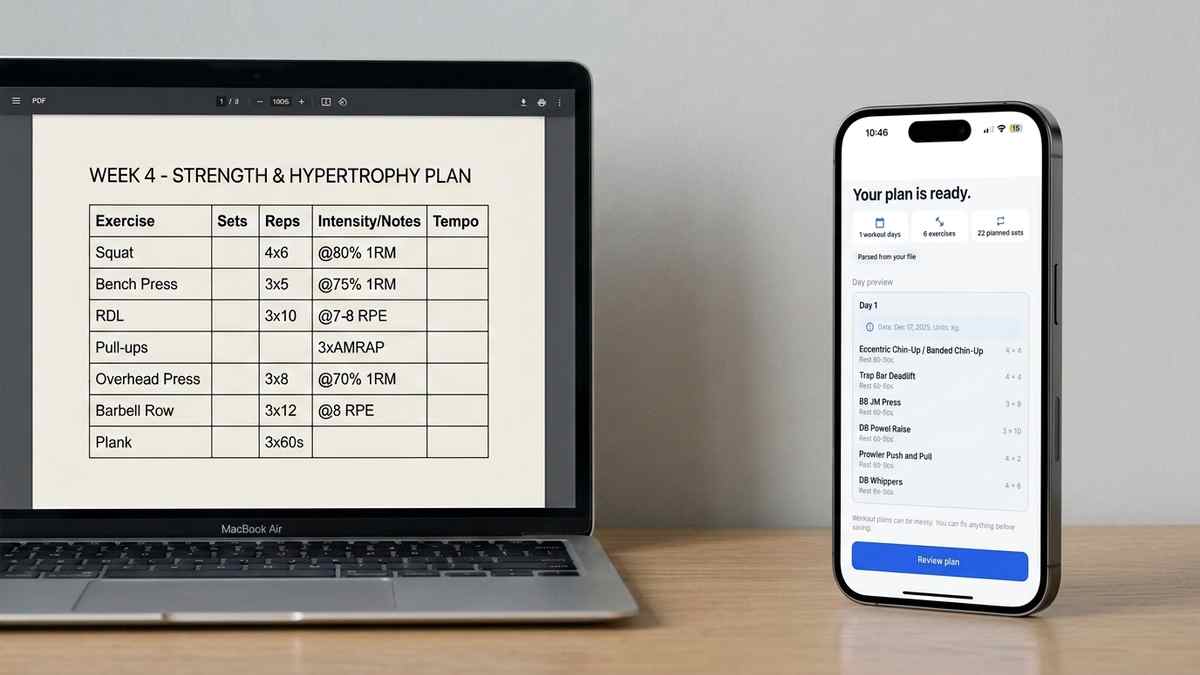
Repport removes that gap. Drop your .xlsx, .csv, PDF, .md, plain-text plan, or even a photo of a handwritten plan into the app and it reads the structure, weeks, days, exercises, sets, reps, and load, then rebuilds it as a tappable, mobile-native workout. There is no template to learn and no re-typing required. The columns, notes, or scribbles you already have are enough.
The import handles the formats coaches actually send: tabular programming with named exercises, load prescriptions in absolute or percentage terms, and optional notes like tempo or RPE cues. If your coach switches up the block, you upload the new file. The previous sessions stay in your log.
Google Sheets works too. Export the sheet as .xlsx and upload it directly. Repport maps column headers to exercise fields automatically, so plans from different coaches or templates come in cleanly without manual adjustment.
If your handwriting looks like it was drafted after a max-effort set, a typed file will still make everyone’s life easier.
Not all spreadsheets import equally. The layouts that work best share a few structural characteristics: consistent column headers, one exercise per row, and values in separate columns for sets, reps, and load rather than combined into a single cell like “3x5 @ 80kg.”
The most reliable column structure uses explicit labels: Exercise, Sets, Reps, Load, and optionally RPE, Rest, and Notes. Column order does not matter as long as the headers are present and unambiguous. Repport reads the header row and maps each field to the appropriate part of the workout structure.
Weeks and days can be indicated either as separate sheets, one tab per week or day, or as labelled sections within a single sheet. “Week 1 Day 1,” “Block A Session 2,” or “Monday Upper” all work. The parser looks for structural repetition to identify session boundaries automatically.
Merged cells are the most common source of import errors. When a coach uses a merged header cell that spans multiple exercises, or a merged cell to label a training block, the parser cannot reliably determine which value belongs to which row. Unmerging these cells before import and replacing them with a repeated label in a dedicated column resolves most parsing failures.
Formulas in load cells also cause issues if the formula result is not stored as a plain value. When exporting from Google Sheets or Excel, choosing “Download as CSV” exports the formula output rather than the formula itself, which is what the parser expects. The XLSX format preserves more of the spreadsheet structure but still handles formula results correctly in most cases.
Colour coding and conditional formatting are ignored during import. If your coach uses colour to indicate intensity zones, rest status, or PR attempts, those distinctions do not carry over. Add a text-based notation instead, an RPE column or a Notes field, if that information matters for logging.
All three formats are supported, but they behave differently during import.
XLSX preserves the full spreadsheet structure including multiple sheets, which is useful when your coach separates weeks or mesocycles into individual tabs. Repport reads each sheet as a potential training block and lets you choose which ones to import. The trade-off is that complex workbooks with pivot tables, charts, or heavily formatted cells can introduce parsing ambiguity.
CSV is simpler and more predictable. Because it has no formatting, no merged cells, and no formulas, the parser can read it with fewer assumptions. If your spreadsheet has a clean single-sheet structure and you are exporting it specifically for import into Repport, CSV often produces the clearest result.
Plain text works well for coach plans delivered in email or messaging apps. Paste the text directly into the import field. The parser identifies exercises by looking for patterns that match known naming conventions and load notations. Plans written in a structured way, exercise name, then sets and reps, import cleanly without any file conversion.
Google Sheets does not support direct upload, but the export step takes about ten seconds. Open the sheet, go to File → Download, and choose Microsoft Excel (.xlsx). Save the file to your phone or use AirDrop to transfer it from your laptop. Repport accepts the file directly from the Files app on iOS.
If your coach shares a Google Sheets link rather than sending a file, you can open the link in Safari, tap the share button, and use the download option to save the sheet as XLSX before importing.
Once the import completes, Repport displays the parsed session as a structured workout with exercises in the order they appear in your plan. Each exercise shows the prescribed sets, reps, and load so you can confirm the import matched your intent before starting the session.
The original file is not stored in the app after import. Repport works from the structured data it extracted, so if you need to re-import a corrected version of the plan, you can do so without affecting your existing session history. Previous logs from sessions run under the old version of the plan remain untouched.
If the import result looks different from what you expected, the review screen lets you edit individual exercises, adjust set and rep counts, and add notes before committing the session to your log. This is where you catch any parsing edge cases before they affect your training data.
Import works best when the plan already exists in a structured document, a coaching template, a spreadsheet block, or a text plan sent over email. When a plan is highly idiosyncratic, handwritten in shorthand only you understand, or changes session to session based on how you feel, manual entry is often faster than cleaning up a parse.
There is no requirement to use import at all. Repport supports both workflows, and many users mix them: import a base template from their coach, then adjust individual sessions manually based on autoregulation. The log treats both sources the same way, so your exported history reflects actual logged sets regardless of whether the session started as an import or a manual entry.
Repport is available now on the App Store for iOS.
Spreadsheets are powerful for programming, but they are frustrating to use mid-workout. Repport bridges the gap by turning your rows and columns into a high-performance training app.
Absolutely. Just export your Google Sheet as an .XLSX file and upload it to Repport. All your programming will be ready to log.
Yes. Repport acts as a universal importer. Once you map a template once, importing future blocks from the same coach is even faster.
Keep reading
Got a coach PDF workout plan? See what an app needs to handle it well, and how Repport turns the file into a loggable session in seconds.
Read more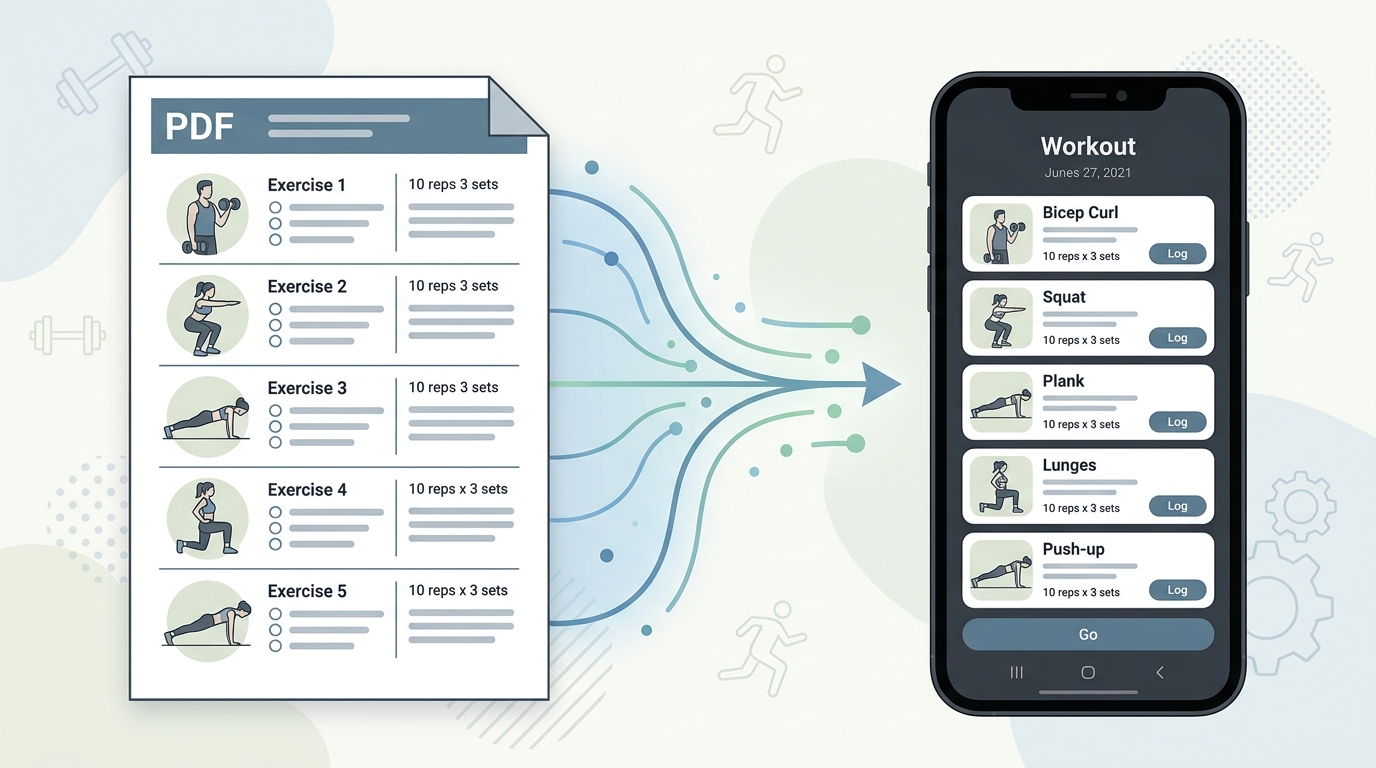
Your coach's PDF is not a training tool. Learn how to convert any workout plan PDF into a structured digital format you can log, track, and follow mid-session.
Read more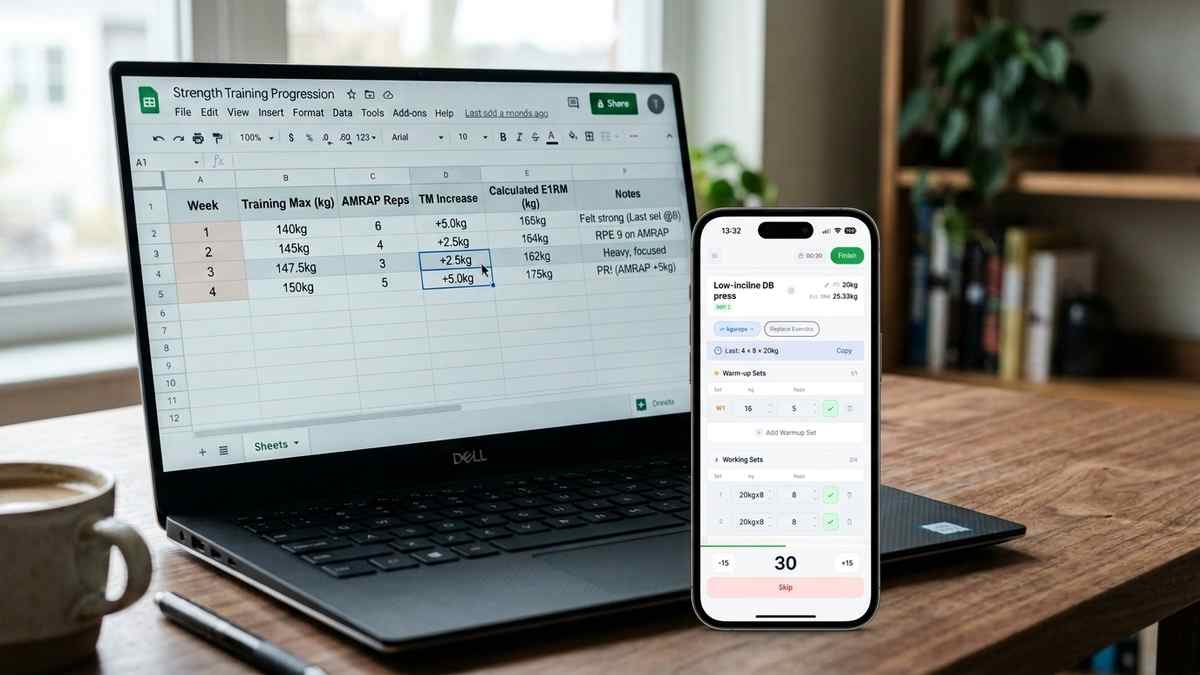
How nSuns 5/3/1 LP differs from standard 5/3/1, its T1/T2 structure, weekly training max progression, and how to track a cycle in an app.
Read moreUpload your plan and get a tappable workout in minutes. Join the future of coaching execution.