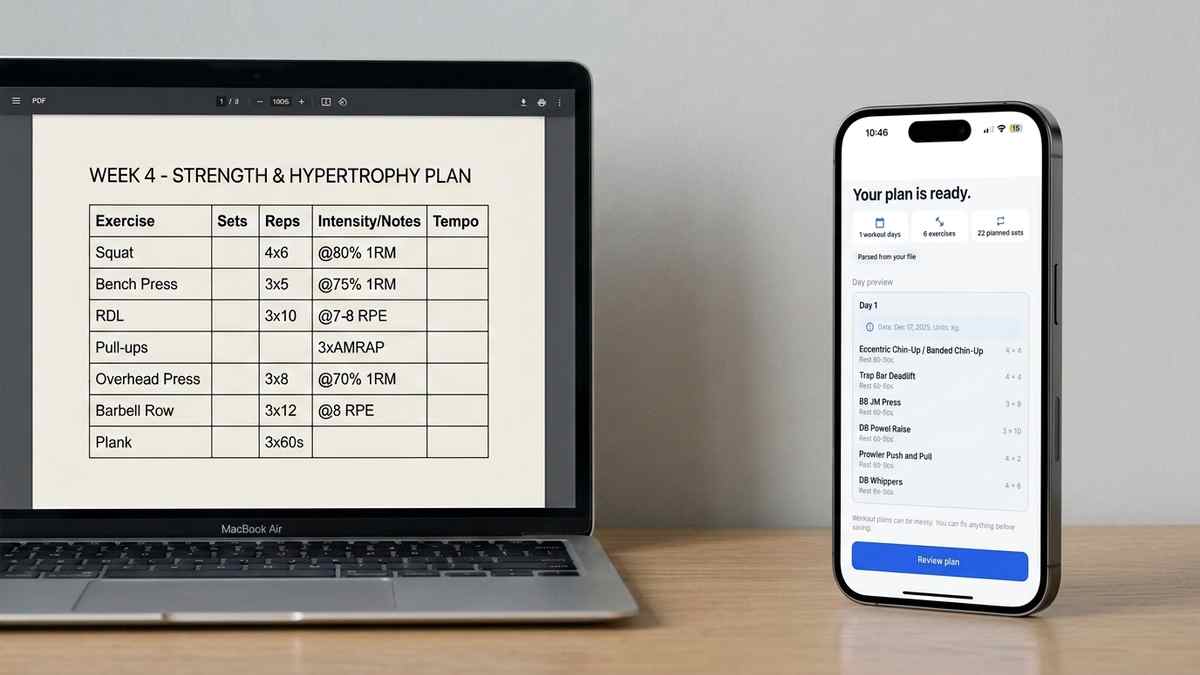
Coach PDF Workout Plan App: How to Track It Without Retyping
Got a coach PDF workout plan? See what an app needs to handle it well, and how Repport turns the file into a loggable session in seconds.
Read moreHave a workout plan from screenshot or photo? Turn a whiteboard shot, Notes screenshot, or saved post into a loggable training log.
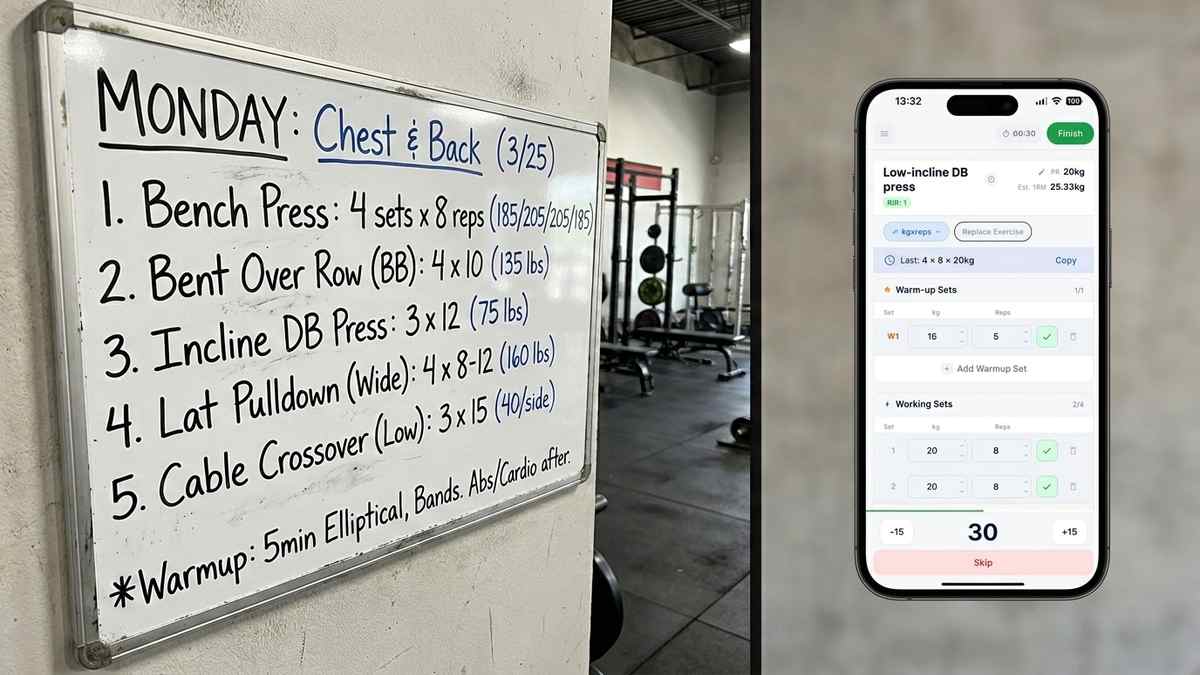
A lot of workout plans never exist as a document at all. They’re a photo of a gym whiteboard, a screenshot of a coach’s Notes app, a saved Instagram post from a lifter you follow, or a picture of a printed sheet taped to the rack. None of that is typed text you can copy and paste. It’s an image, and turning a workout plan screenshot into something you can actually log requires a different process than converting a PDF or spreadsheet.
This is a common starting point, not an edge case. Coaches sketch sessions on whiteboards between clients. Lifters screenshot programs they find online. Gyms post the day’s session as a photo in a group chat. In every case, the plan is visible but not usable mid-workout: you’re pinch-zooming a photo between sets, trying to remember which line you were on.
Getting a screenshot workout plan into an app means extracting the exercises, sets, reps, and load prescriptions from the image itself, since there’s no underlying text to copy. Here’s what makes that work, and what makes it fail.
An image has no structure a training app can read directly. A PDF or spreadsheet at least has selectable text underneath the layout. A photo of a whiteboard or a screenshot of an Instagram caption is just pixels, no matter how clearly it’s written.
That creates specific friction at the gym. You can’t tap a set to mark it done, because the image is a static picture, not an interactive element. You can’t see last week’s weights next to today’s target, because the photo has no memory of previous sessions. Zooming in on a phone screenshot to read small text between sets breaks your rest timing and your focus.
The variety of sources makes it worse. A whiteboard photo has marker glare and gym lighting. An Instagram screenshot has captions, hashtags, and UI chrome mixed in with the actual workout. A Notes app screenshot might use shorthand only the coach who wrote it understands. Each source needs to be read correctly before it’s useful for training rather than just for reference.
Some photos and screenshots convert cleanly. Others need a second attempt. The difference usually comes down to a few visible factors.
Lighting and glare matter most for whiteboard and paper photos. A whiteboard shot straight-on under even light reads clearly. The same board photographed at an angle, with a ceiling light reflecting off the marker ink, loses legibility exactly where the numbers are.
Handwriting versus typed text is the second factor. Printed sheets, Notes app screenshots, and social media posts are typically typed and parse close to perfectly. Handwritten whiteboards and notebooks vary by how legible the handwriting is, not by the app reading it.
Framing and resolution round out the list. A full plan captured in one flat, well-lit shot, with the whole session in frame and no heavy cropping, gives the most complete and accurate result. A cropped screenshot or a photo taken from an angle loses either data or accuracy.
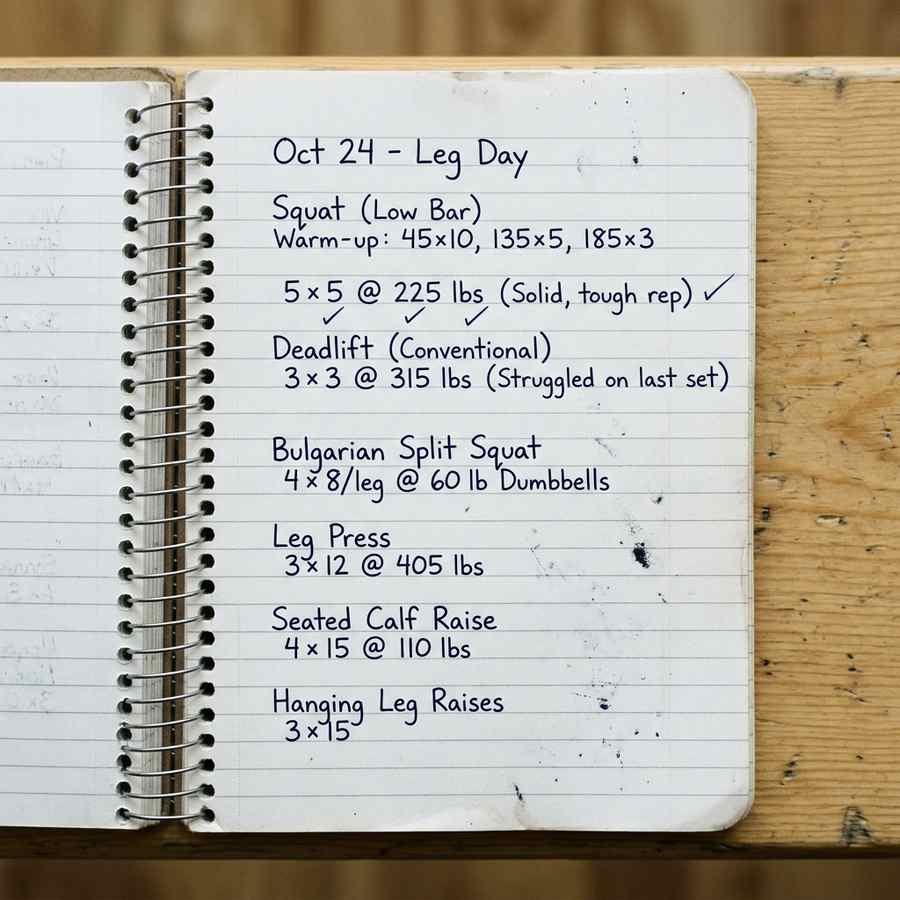
Repport’s import flow includes Image as one of its input formats alongside PDF, Excel/CSV, and plain text. You pick Image, select or capture the photo or screenshot, and Repport reads the visual layout directly, identifying exercise names, sets, reps, and any load or RPE notation visible in the image.
The result is a structured plan preview, the same review step you’d get importing a PDF or spreadsheet. You can check that exercises were read correctly, fix anything a whiteboard photo made ambiguous, and then save it as a loggable session. From there it behaves like any other imported plan: sets you can check off, weights you can log, and history that carries forward to the next time you train that session.
This is where image import connects to the rest of a coached lifter’s workflow. If your coach also sends plans as a PDF one week and a whiteboard photo the next, both go through the same import screen and land in the same trackable log, so switching sources doesn’t mean switching how you train.
Yes. Repport’s photo import path reads handwritten text as well as printed or typed text. Clear handwriting on a whiteboard or in a notebook parses well. Very rushed handwriting or heavy abbreviation may need a quick review and edit after import, same as any parsing method.
Repport imports whatever is visible in the image. If a screenshot cuts off the bottom of a session or a whiteboard photo misses a corner, only the visible exercises are parsed. Take a second photo or screenshot of the missing section and import it separately, it adds to the same plan without duplicating what you already imported.
Yes, more than with a text-based file. Glare on a whiteboard, low light, a skewed angle, or a blurry photo all reduce how much text is legible. A flat angle, even lighting, and the full plan in frame produce the most accurate parse.
If your plan usually arrives as a PDF instead, see how to get a coach’s workout plan into an app for the document-based version of this same import flow. If a coach texts you sessions instead of sending files, importing a workout plan from a text message covers that format specifically. And for a look at how the parsing itself works across every format, see the workout plan parser guide.
Upload your plan to Repport and get a tappable, loggable workout in seconds. Available now on the App Store.
Yes. Repport's photo import path reads handwritten text as well as printed or typed text. Clear handwriting on a whiteboard or in a notebook parses well. Very rushed handwriting or heavy abbreviation may need a quick review and edit after import, same as any parsing method.
Repport imports whatever is visible in the image. If a screenshot cuts off the bottom of a session or a whiteboard photo misses a corner, only the visible exercises are parsed. Take a second photo or screenshot of the missing section and import it separately, it adds to the same plan without duplicating what you already imported.
Yes, more than with a text-based file. Glare on a whiteboard, low light, a skewed angle, or a blurry photo all reduce how much text is legible. A flat angle, even lighting, and the full plan in frame produce the most accurate parse.
Keep reading
Got a coach PDF workout plan? See what an app needs to handle it well, and how Repport turns the file into a loggable session in seconds.
Read more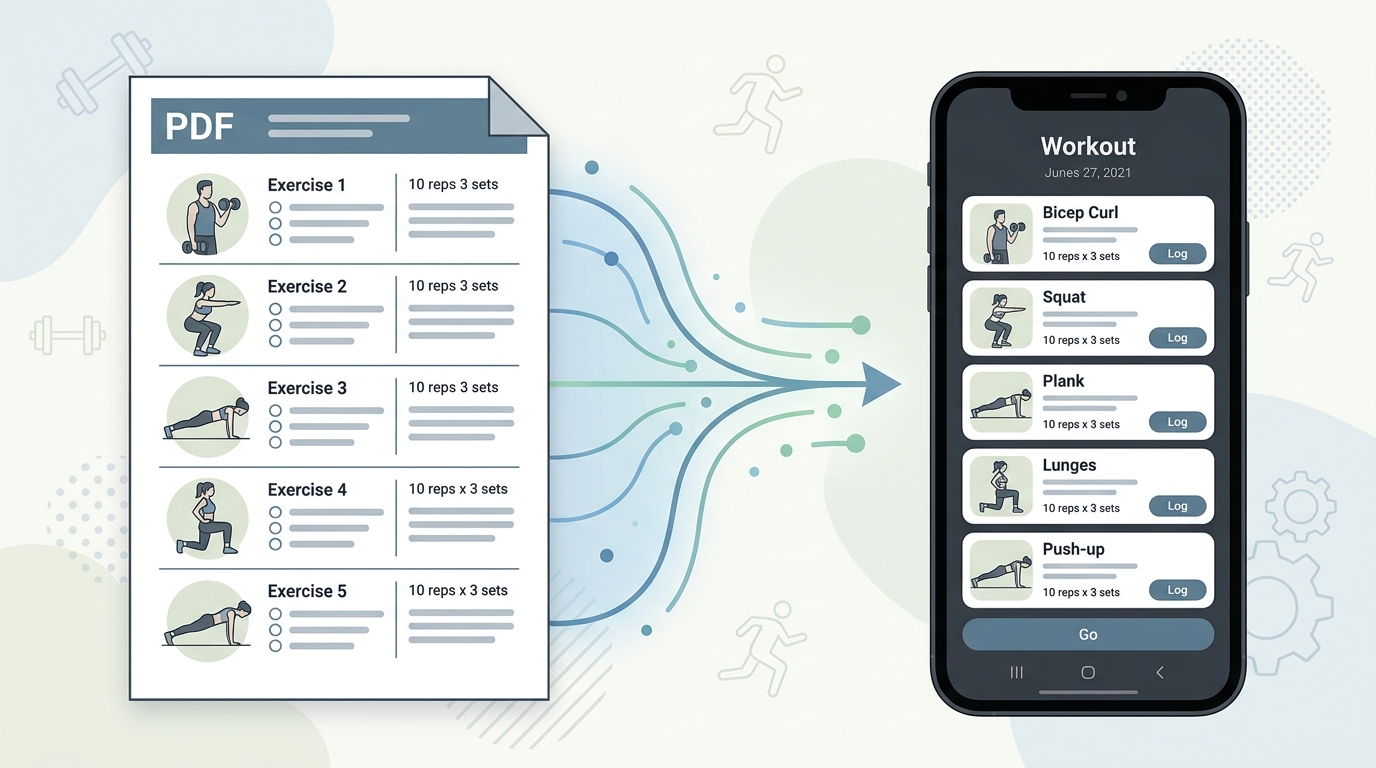
Your coach's PDF is not a training tool. Learn how to convert any workout plan PDF into a structured digital format you can log, track, and follow mid-session.
Read more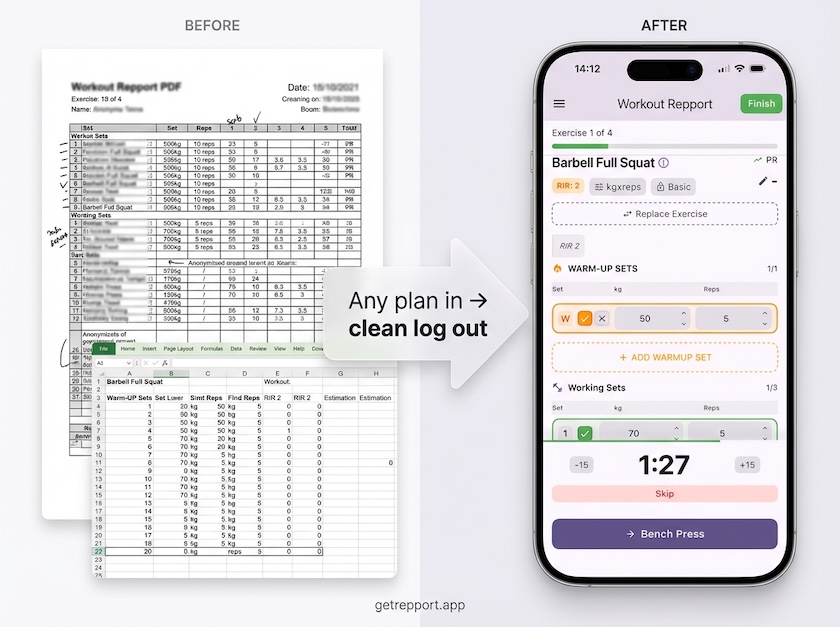
Stop training from a messy spreadsheet. Import your Excel or Google Sheets workout plan into Repport and log your sets with a mobile-first interface.
Read moreUpload your plan and get a tappable workout in minutes. Join the future of coaching execution.