Exporting My Workout Log to Excel: The Real Spreadsheet
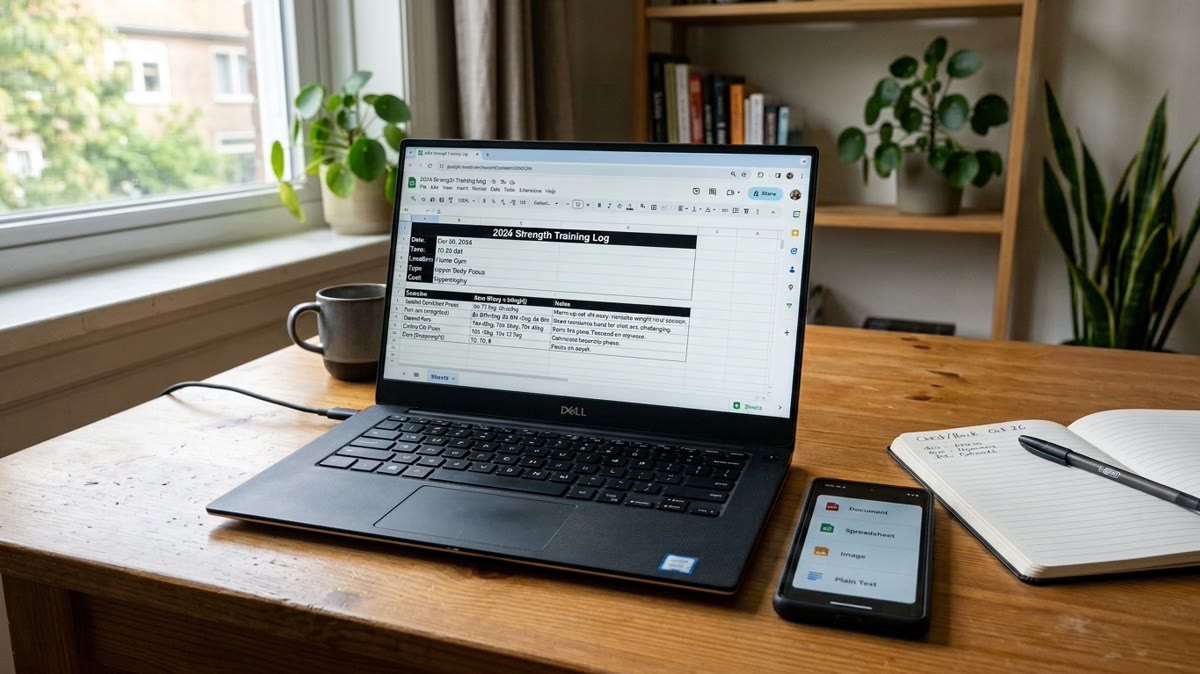
The real Excel file Repport exports from a training block: a structured Exercise / Sets / Notes table per workout, ready to sort, chart, or hand to an LLM.
Read moreThe real file Repport exports from a finished plan. PDF to send a coach, CSV or plain text to hand your full log to ChatGPT or Claude for analysis.
I need my progress out of the app, for my coach and for AI analysis
Download the source file — the exported Workout Report PDF (PDF)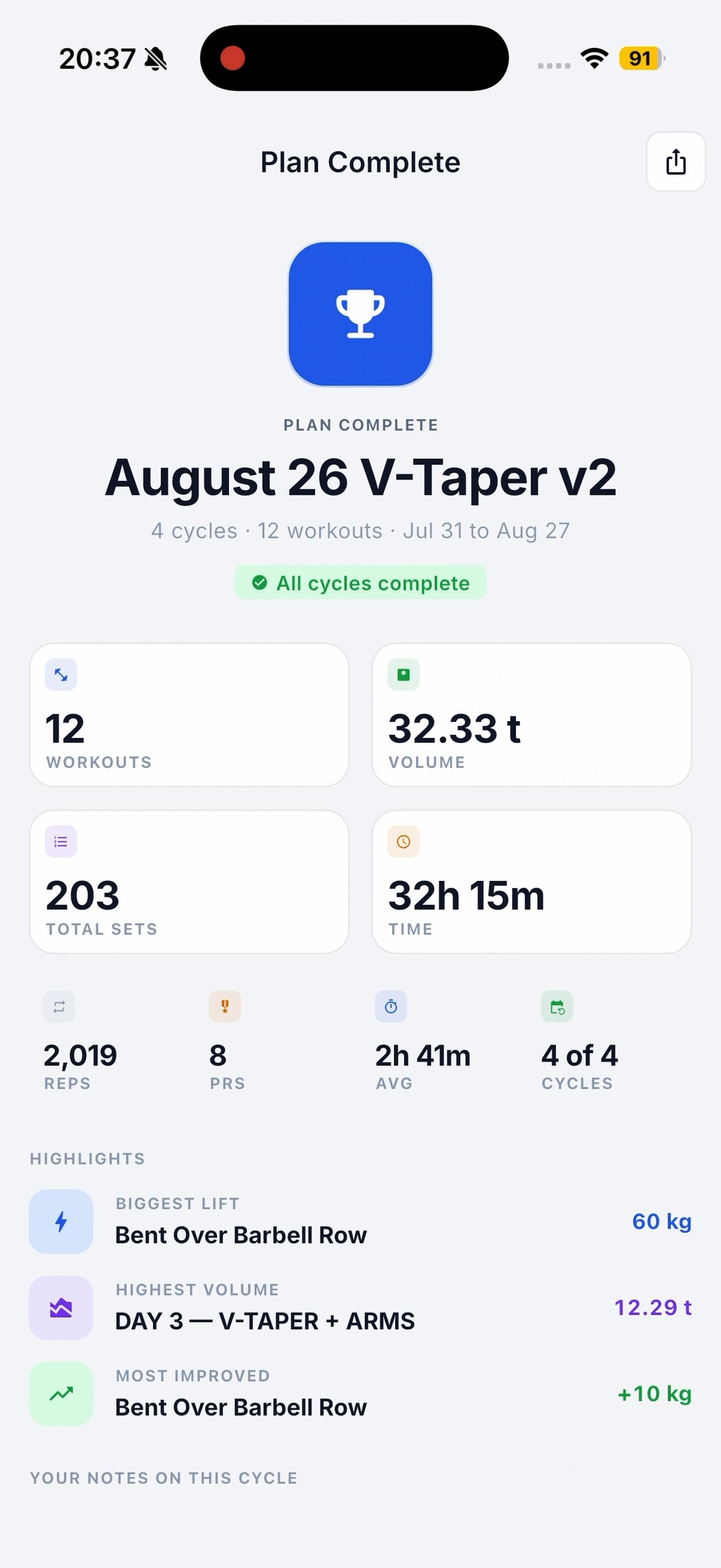
You finished a training block. Now your coach wants to see how it actually went, or you want ChatGPT or Claude to look at the numbers and tell you what to change next. Either way, the log has to leave the app.
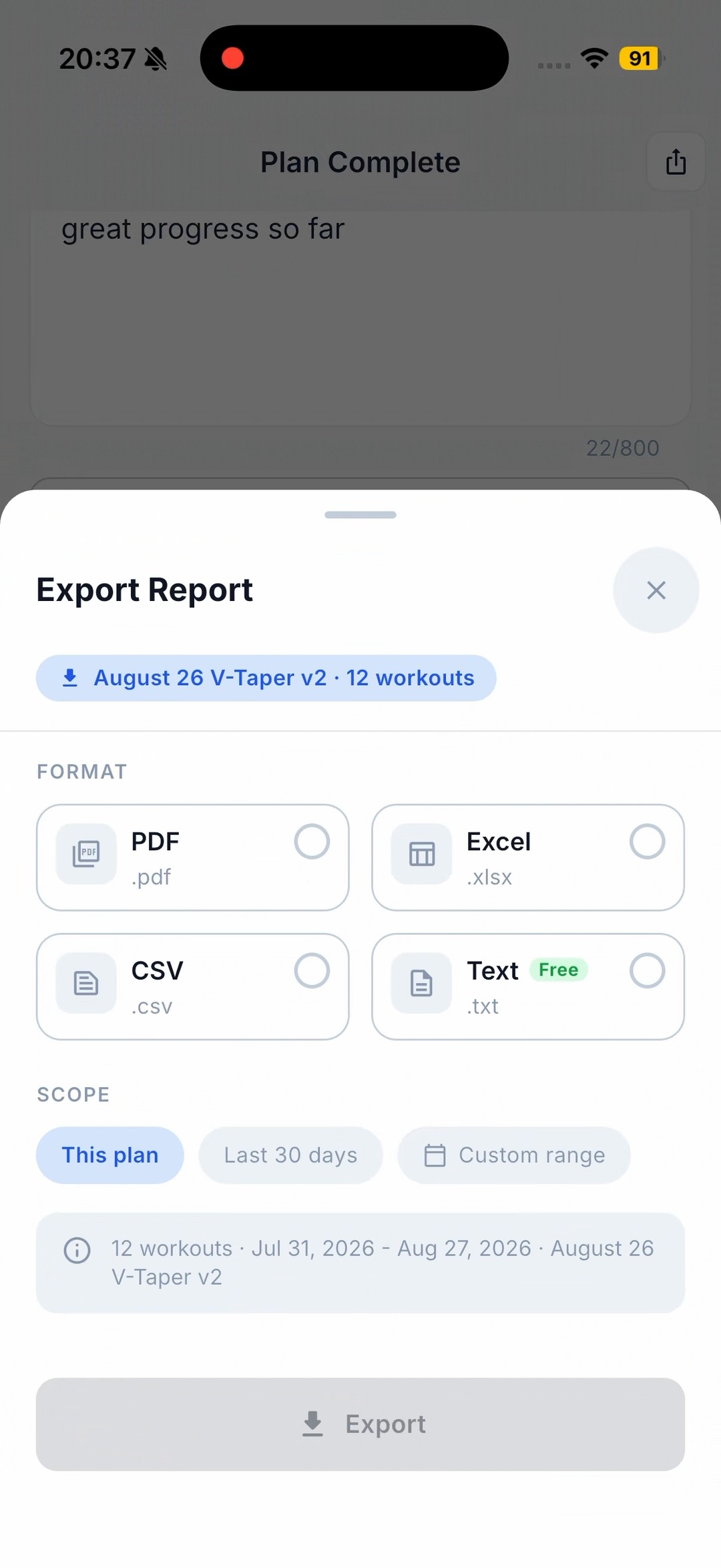
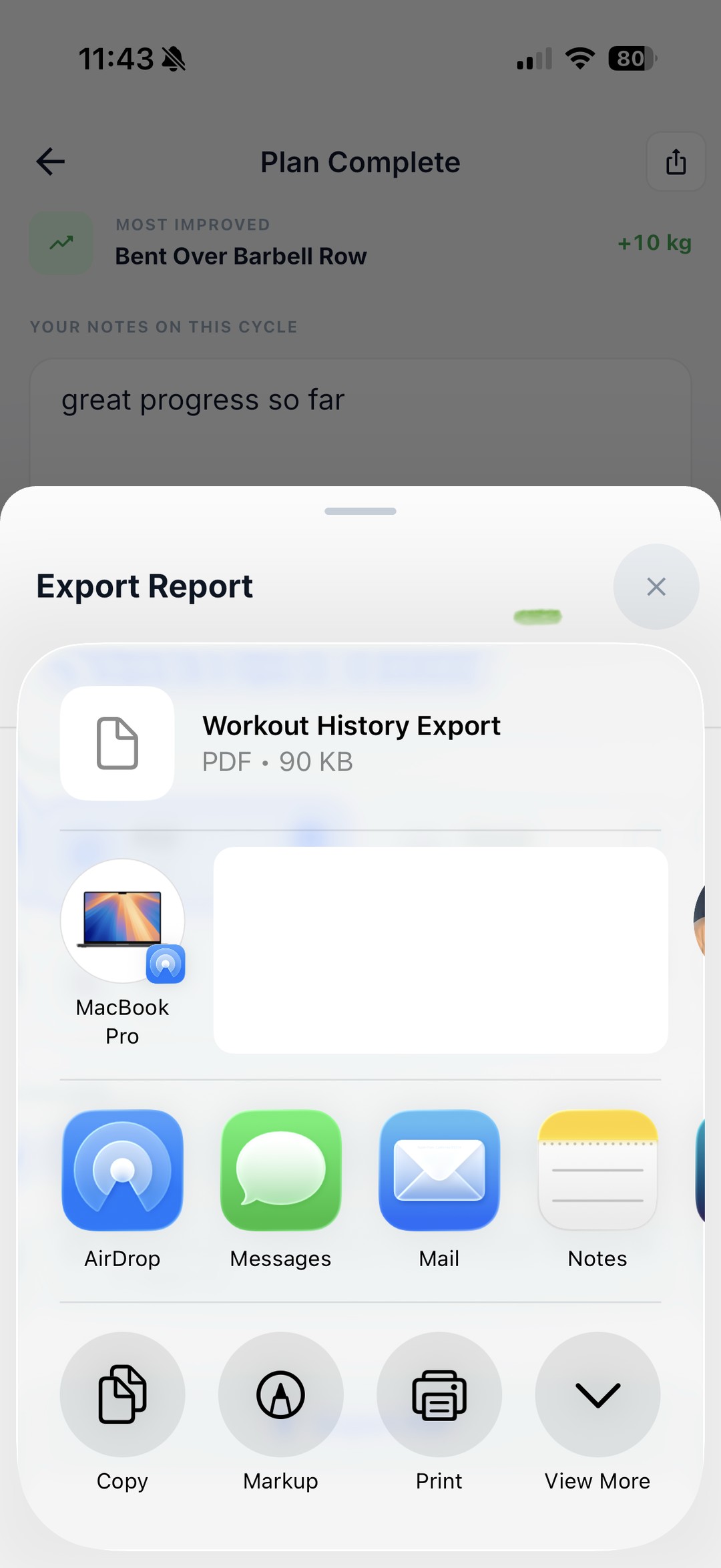
Repport exports the whole plan as one file in about 15 seconds: a PDF a coach can read, or a CSV or text file you paste straight into an AI chat. Below is the real export from a finished 12-session plan, embedded in full, next to the recording of it being made.
Most training apps are happy to take your logs and much less happy to hand them back in a form anyone else can use. A screenshot of a workout screen is not reviewable. Retyping four weeks of sets into a message does not happen.
So coaches end up coaching off “felt strong this week”, and when you ask an AI for a second opinion you paste in a vague paragraph instead of the actual loads. The fix is a clean export of the real log, in whatever format the person or tool on the other end needs.
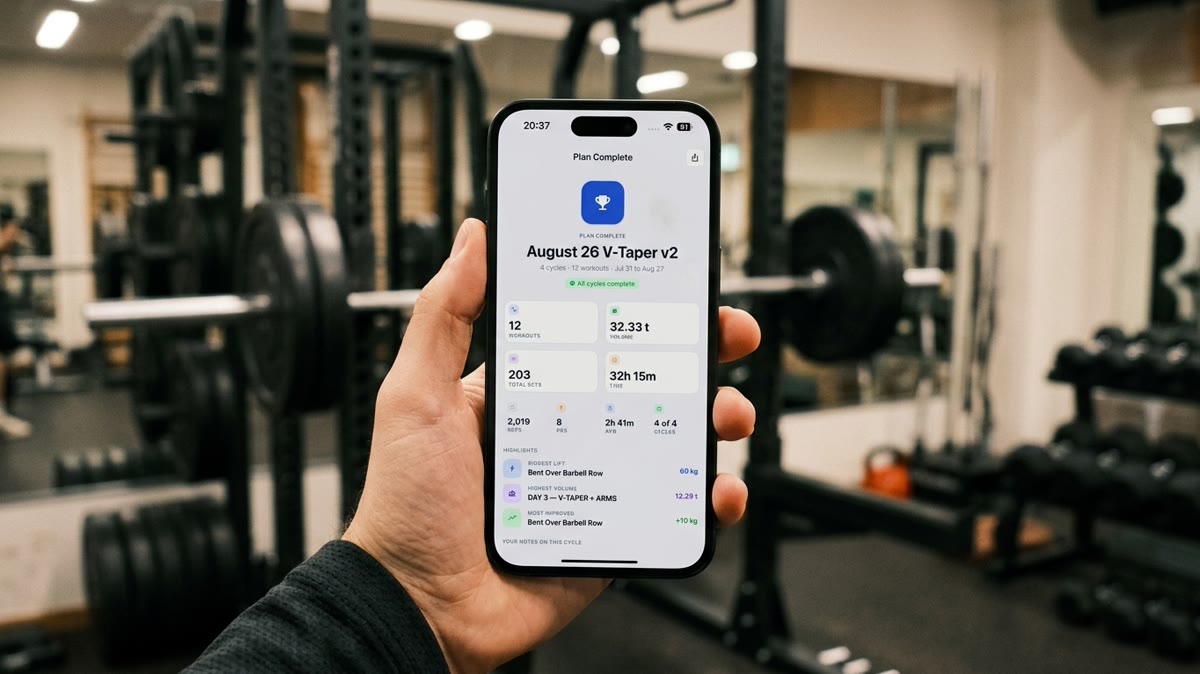
For a human reader, use PDF. It opens anywhere, keeps its layout, and needs no app. Your coach sees the summary, 12 workouts, 203 sets, 32.3 tonnes moved in this one, then every session in order: date, the day’s name, duration, and each exercise with the exact sets you logged.
They are reviewing what happened, not what you remember. Scroll the embedded file below; that is the whole thing, nothing trimmed. You check it once, then send it the way you already talk to your coach. Repport passes the file to the iOS share sheet, so it goes out by email or a messaging app. There is no coach login and nothing syncs on its own.
For analysis, use CSV or plain text from the same sheet (text is the free format). Both give a plain table, one row per exercise with the sets in a single column, which a language model reads without guessing. Paste the file into the chat and ask a real question: where did progression stall, which lifts carried the volume, what should change next block.
Because the model is working from your actual sets and weights, the answer is about your training, not a generic template. PDF is worse for this; the layout gets in the way. Keep PDF for people and CSV or text for tools. The CSV and XLSX export guide covers what those columns hold.
It lives on the Plan Complete screen, under Export & share. Tap Export report, pick a format (PDF, Excel, CSV, or text) and a scope (this plan, last 30 days, or a custom range), then tap Export. Repport builds the file, around 90 KB here, and passes it to the share sheet: AirDrop, Mail, Messages, Files, Print.
The recording above is the whole path, start to finish, in about 15 seconds. The second button, Share image, exports the summary card as a picture for a quick post, not a full log.
The export is the real log, not a cleaned version. In this one, a session that was opened and left empty still appears, a session where the rest timer ran overnight reads 1404 min, a note typed mid-set (“te 20 to ledwo”) stays attached to its exercise, an exercise swap is written out in full, and Polish exercise names are kept as entered. That is deliberate. A coach or an analysis needs the log as it happened.
What the file leaves out is the app-side analytics: the total rep count, the personal-record flags, and the biggest-lift and most-improved cards. Those stay on the Plan Complete screen.
There is no coach portal, no automatic sync, and no send-to-ChatGPT button. Repport gives you a correct file and opens the share sheet. Picking the format, checking the file, and sending it are yours to do. That is one manual step, set against not having your training data in a usable form at all.
On the Plan Complete screen, open Export report, choose PDF and a date scope, then tap Export. Repport builds the file and hands it to the iOS share sheet, so you can AirDrop it, email it, or save it to Files.
PDF. It keeps its layout, opens on any device without the app, and shows the summary plus every logged session in order. Excel works too if your coach prefers to sort the data themselves.
CSV or plain text. Both are a plain structured table, which a language model reads without misparsing. Paste the file into the chat and ask what to change next block; the model is working from your actual loads and reps.
Yes. Pick Last 30 days or a custom range instead of This plan. Sessions you opened but never logged still appear in the file.
No. There is no coach account or sync. Repport creates the file and opens the standard iOS share sheet, and you send it yourself.
On the Plan Complete screen, open Export report, choose PDF and a date scope, then tap Export. Repport builds the file and hands it to the iOS share sheet, so you can AirDrop it, email it, or save it to Files.
PDF. It keeps its layout, opens on any device without the app, and shows the summary plus every logged session in order. Excel works too if your coach prefers to sort the data themselves.
CSV or plain text. Both are one row per set, which a language model reads without misparsing. Paste the file into the chat and ask what to change next block; the model is working from your actual loads and reps.
Yes. Pick Last 30 days or a custom range instead of This plan. Sessions you opened but never logged still appear in the file.
No. There is no coach account or sync. Repport creates the file and opens the standard iOS share sheet, and you send it yourself.
Keep reading
The real Excel file Repport exports from a training block: a structured Exercise / Sets / Notes table per workout, ready to sort, chart, or hand to an LLM.
Read more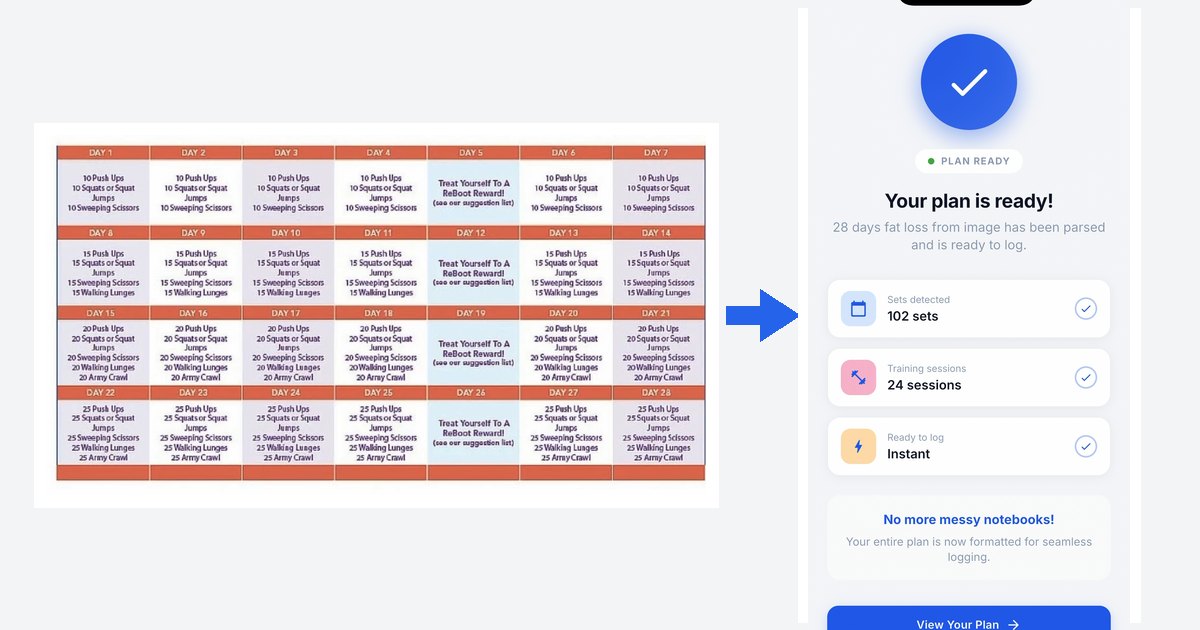
Workout plan from image app: a real 28-day challenge imported from one picture into Repport in about 35 seconds. Every parsed set, plus the full recording.
Read more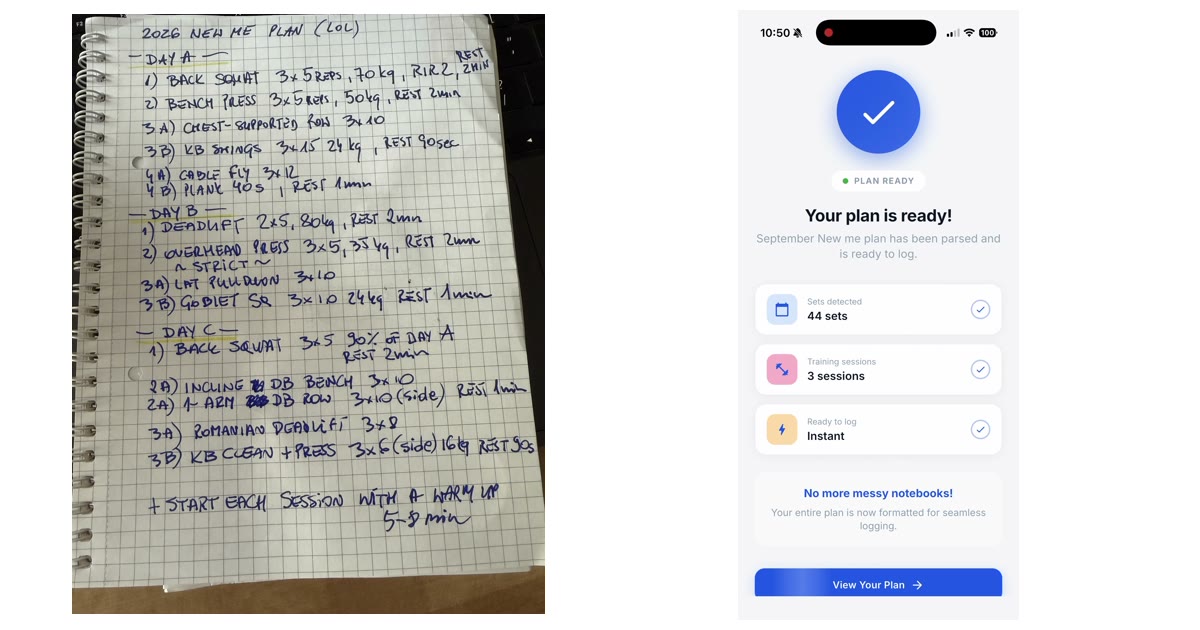
A handwritten 3-day plan, photographed once and imported into Repport in about 30 seconds: 3 sessions, 15 exercises, 44 sets. Every parsed line, plus the recording.
Read moreUpload your plan and get a tappable workout in minutes. Join the future of coaching execution.